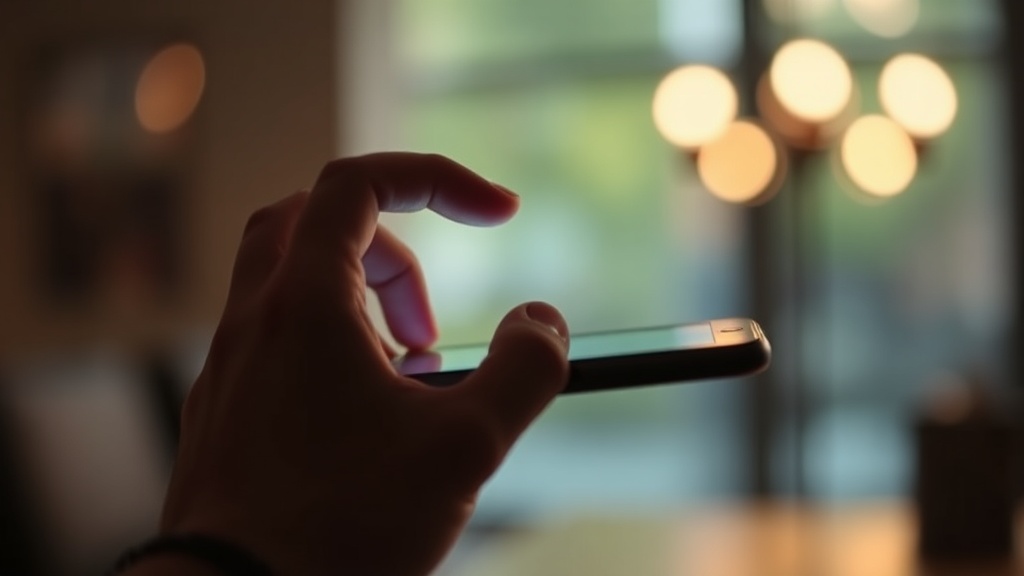
The Hidden Gesture That Transforms How You handle iOS

Quick Tip
Swipe right from the left edge of your iPhone screen to go back instead of reaching for the top-left back button.
This post reveals a swipe gesture most iPhone users miss — one that eliminates thumb-stretching and speeds up one-handed use across iOS. You’ll learn where it works, where it doesn't, and how to build it into muscle memory.
What Is the Hidden Back Gesture on iOS?
The hidden back gesture is a simple edge swipe. Drag your finger from the left edge of the screen toward the center, and you'll pop back to the previous screen. It's baked into iOS 18 and works in nearly every app using standard navigation controllers.
Most people tap the back button in the top-left corner. That's fine — until you're holding an iPhone 16 Pro Max with one hand. The edge swipe puts navigation within easy thumb reach. No stretching. No repositioning.
The gesture triggers from anywhere along the left bezel. Start your swipe at the very edge — right where the screen meets the frame. Pull about an inch inward. The current view slides away, revealing what's underneath.
Which Apps Support the iOS Back Swipe Gesture?
Almost every native Apple app supports it. Messages, Settings, Photos, Mail, Safari — they all respond to that left-edge swipe. Third-party apps built with Apple's standard UIKit navigation get it automatically.
That said, some apps break the pattern. Instagram, for instance, uses the left swipe to move between stories or open the camera. Games with custom interfaces often disable system gestures to prevent accidental triggers. The gesture won't work in fullscreen video players or certain camera modes either.
| App | Back Swipe Works? | Notes |
|---|---|---|
| Safari | Yes | Swipes back to previous page |
| Settings | Yes | Universal across all submenus |
| No | Swipe left opens camera instead | |
| Spotify | Partial | Works in menus, not in Now Playing |
| Games (custom UI) | Rarely | Depends on developer implementation |
Apps using SwiftUI — Apple's newer framework — sometimes handle gestures differently. The back swipe still functions, but the animation feel varies slightly from UIKit apps.
How Does iOS Back Gesture Compare to Android?
Android's back gesture works from either edge. Swipe from the left or right — both take you back. iOS restricts it to the left edge only. (Apple reserves right-edge swipes for other functions, like accessing the app switcher on newer iPhones.)
Here's the thing: Android's version is more flexible, but iOS's implementation feels more deliberate. The left-edge restriction reduces accidental triggers when scrolling horizontally through photos or web pages. You're less likely to go back when you meant to swipe through an image gallery.
Android also lets you adjust gesture sensitivity. iOS keeps it fixed. The sensitivity on iPhone strikes a balance — responsive enough to feel natural, resistant enough to ignore casual contact with the screen edge when holding the device.
Worth noting: both systems support the "swipe and hold" variation. Start the back swipe, pause with your finger held down, and you'll peek at the previous screen without fully committing. Release to complete the back action — or swipe back right to cancel. It's perfect for those "wait, what was on that last screen?" moments.
Tips for Mastering the Gesture
- Start at the bezel. Begin your finger right on the edge — not slightly inward. iOS needs that initial contact at the border to distinguish navigation from scrolling.
- Keep it horizontal. A diagonal swipe might register as a scroll instead. Aim straight across.
- Use your thumb's natural arc. On larger phones like the iPhone 16 Pro Max, pivot from the base of your thumb rather than stretching the tip.
- Practice in Settings. The Settings app responds reliably — making it ideal for building muscle memory without consequences.
The edge swipe isn't new. It's been in iOS since 2013's iOS 7. Yet years later, plenty of users still don't know it exists — tapping that tiny back button instead, hundreds of times per day.
Once this gesture becomes automatic, you'll notice every time you reach for the back button. It'll feel archaic. Like hunting for a TV remote when voice control works perfectly.
Try it now. Open Settings, tap into any submenu, then swipe from the left edge. That's it. No more stretching.