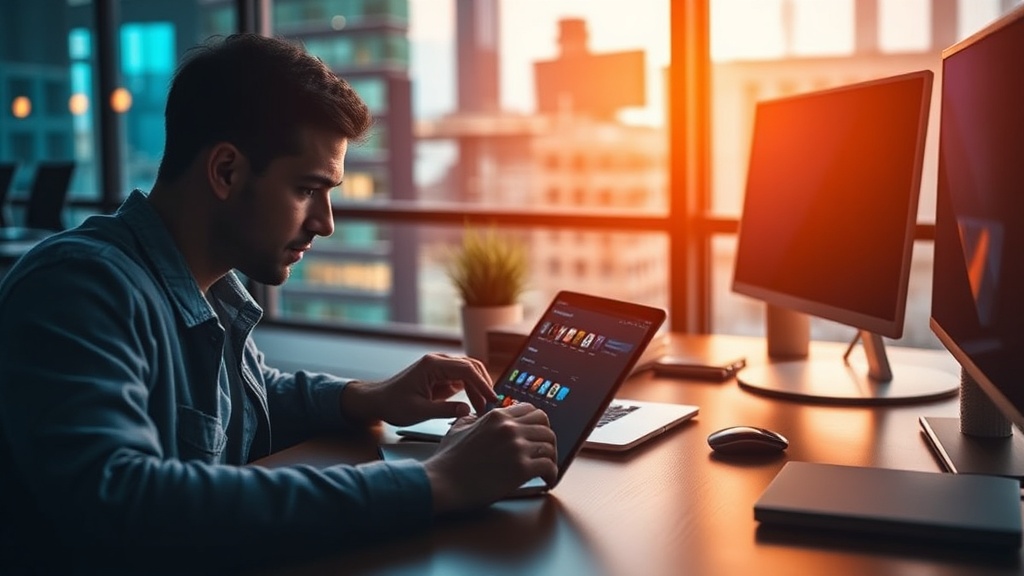
Transform Your Smartphone into a Professional Mobile Workstation

You'll learn how to turn your smartphone into a high-performance mobile workstation through specific hardware integrations, software optimizations, and peripheral setups. This guide covers the hardware you need, the best ways to connect peripherals, and how to manage your workflow on a small screen.
What Hardware Do I Need to Build a Mobile Workstation?
To build a professional mobile workstation, you need a USB-C hub, a compatible keyboard, and a mouse or trackpad. Most modern flagship devices, like the Samsung Galaxy S24 Ultra or the iPhone 15 Pro, support high-speed data transfer and external display output through their USB-C ports.
The foundation of any mobile setup is the connectivity hub. Don't settle for a basic charging cable when you need to do real work. You want a hub that supports Power Delivery (PD) so your phone stays charged while you're tethered to a monitor. Anker and Satechi make excellent options that provide HDMI ports for external displays and multiple USB-A or USB-C ports for peripherals.
If you're using an Android device, you might want to look into Samsung DeX. It's a feature that transforms your phone's interface into a desktop-like environment when connected to a monitor. It makes typing long emails or editing spreadsheets much less painful. Even if you aren't using a Samsung device, a Bluetooth-enabled mechanical keyboard—like the Logitech MX Keys Mini—will make a massive difference in your typing speed and accuracy.
Here's a quick breakdown of the essential gear:
| Component | Recommended Type | Why It Matters |
|---|---|---|
| Connectivity | USB-C Multiport Hub | Connects monitors, mice, and keyboards simultaneously. |
| Input | Bluetooth Mechanical Keyboard | Provides better tactile feedback for long typing sessions. |
| Display | USB-C to HDMI Cable | Mirrors your phone screen to a larger monitor or TV. |
| Storage | External SSD | Adds massive space and faster file transfers than SD cards. |
How Do I Connect a Monitor to My Phone?
You can connect a monitor to your phone by using a USB-C to HDMI adapter or a docking station that supports video output. This process depends entirely on whether your phone's hardware supports "DisplayPort Alt Mode" over its USB-C port.
High-end devices from Apple and Samsung support this natively. For instance, plugging a MacBook-style USB-C cable into a modern iPad Pro or a high-end Android phone can instantly mirror your screen to a monitor. If your device doesn't support video output via USB-C, you'll have to rely on wireless casting techniques like Google Chromecast or Apple AirPlay. Wireless is fine for presentations, but for actual work, a wired connection is much more stable—and much faster.
A common mistake is buying a cheap cable that only handles data and charging. If you try to plug your phone into a monitor with a standard charging cable, you'll likely see nothing but a black screen. Check the specifications for "DisplayPort Alt Mode" or "Thunderbolt" compatibility before you spend any money. It's a small detail, but it's the difference between a working setup and a pile of useless plastic.
If you're worried about your files being accessible while you're working on a larger screen, you should look into configuring your mobile cloud storage to ensure your documents are synced across all devices seamlessly.
What Are the Best Apps for Mobile Productivity?
The best productivity apps for a mobile workstation are those that offer full-featured desktop versions, such as Microsoft Office 365, Google Workspace, and Notion. You need apps that can handle complex-task management and multi-window workflows.
Mobile-first apps are great for quick notes, but when you're tethered to a keyboard and monitor, you want something more substantial. For example, if you're writing a long-form article, using the desktop version of Google Docs via a mobile browser or the dedicated app is much more efficient than trying to type on a tiny glass screen.
Here are the categories of apps you should focus on for a professional setup:
- Document Creation: Microsoft Word, Google Docs, and Notion for structured writing.
- Project Management: Trello or Asana to keep track of deadlines and tasks.
- File Management: Files by Google or the native iOS Files app to move data between your phone and external drives.
- Communication: Slack or Microsoft Teams for professional-grade messaging and video calls.
If you're looking for more specific software recommendations, check out the best productivity apps for iPhone and Android. It's a deep dive into which tools actually work when you're on the move.
One thing to keep in mind: even with a great setup, your phone's operating system still has limitations. You won't be running full Adobe Premiere Pro or heavy CAD software on a mobile OS yet. However, for 90% of administrative, writing, and management tasks, a well-equipped smartphone is more than enough. It's about working smarter, not necessarily harder.
Wait, there's a catch. If you're using a lot of peripherals, your battery will drain much faster than usual. A high-wattage power bank or a hub with pass-through charging is non-negotiable. You don't want your "workstation" dying right in the middle of a client call. I've seen many people try to run a full desktop setup only to have their phone die after 45 minutes because they forgot to account for the power draw of the external monitor and keyboard.
Also, keep an eye on your heat levels. Using the camera, the GPS, and a high-brightness external display while charging can make your phone quite hot. If you're doing heavy multitasking, try to keep the device in a well-ventilated area. If the phone gets too hot, it will throttle the processor, and your "workstation" will suddenly feel very sluggish.
To keep your setup secure while working in public spaces like cafes or co-working hubs, you should definitely protect your digital privacy. Using public Wi-Fi for professional work carries risks, so a VPN or a mobile hotspot is a smart move.
The goal is to create a setup that feels natural. If you're constantly fighting with the interface or struggling with a laggy connection, it's not a workstation—it's just a phone with extra stuff attached. Fine-tune your peripherals, choose your software carefully, and always carry a way to keep the power flowing.