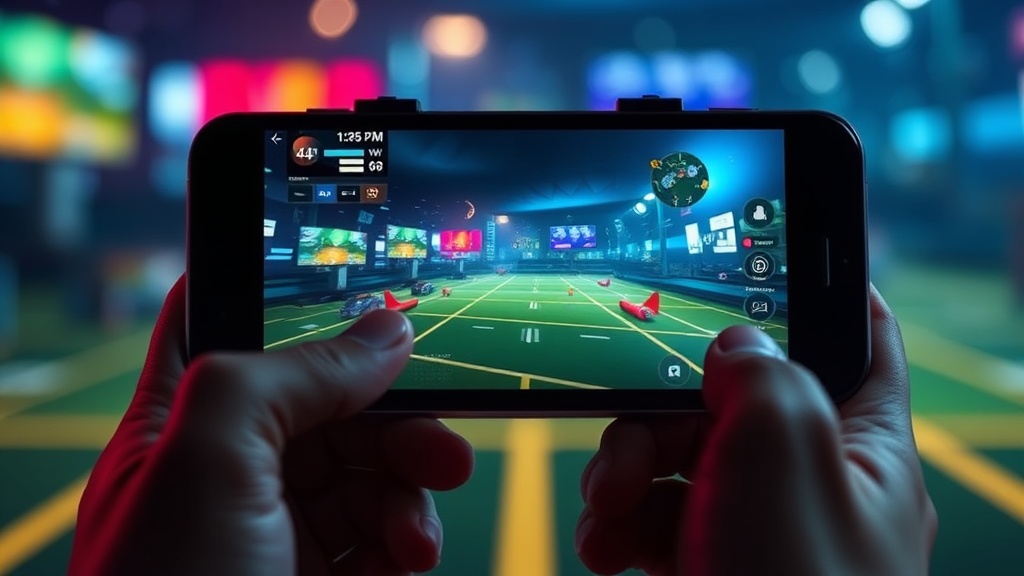
Set Up Your Mobile Gaming Mode for Zero Lag

This guide explains how to configure your Android or iOS device settings, network preferences, and hardware-specific features to minimize latency and maximize frame rates during mobile gaming. You'll learn how to prioritize system resources, manage background processes, and optimize your connection to ensure your gameplay remains smooth and responsive.
Lag is the enemy of every competitive player. Whether you're playing Genshin Impact or Call of Duty: Mobile, a single stutter can end a winning streak. Most people assume their phone just isn't powerful enough, but often, the issue is actually how the software handles resources. We're going to fix that.
How Do I Reduce Ping in Mobile Gaming?
To reduce your ping, you must switch from Wi-Fi to a stable 5G connection or use a dedicated mobile hotspot with optimized settings. While Wi-Fi is convenient, it's prone to interference from household appliances and walls. A direct cellular connection often provides a more consistent path to game servers.
If you're stuck using Wi-Fi, try these steps to stabilize your connection:
- Move closer to the router: Physical distance is a major factor in packet loss.
- Use the 5GHz band: Most modern routers offer two bands. The 5GHz band is faster and less crowded than 2.4GHz, though it has a shorter range.
- Disable background syncing: Apps like Google Photos or iCloud often start uploading data in the middle of your session.
If you're tethering from another device, you should configure your mobile hotspot for maximum speed and stability to ensure your gaming device isn't fighting for bandwidth. It's a small tweak, but it makes a massive difference in high-stakes matches.
Check your network latency regularly. If you see spikes, it's usually not your phone's fault—it's the network. Don't blame your hardware if your ISP is having a bad day.
What Are the Best Settings for Android Gaming Mode?
The best settings for Android involve enabling "Game Mode" or "Game Booster" features found in Samsung's One UI or Google's Pixel software. These modes automatically block notifications and prioritize CPU/GPU resources for the active application.
Samsung users have a distinct advantage with their Game Booster tool. It allows you to manage thermal throttling and even adjust how much memory is allocated to the game. If you're on a OnePlus or Xiaomi device, look for "Pro Gamer Mode" or "Game Turbo." These aren't just marketing fluff—they actually work by killing non-essential background processes that eat up your RAM.
Here is a quick breakdown of what to look for in your device settings:
| Feature | What It Does | Impact on Gaming |
|---|---|---|
| Do Not Disturb | Blocks calls and notifications. | Prevents interruptions and accidental touches. |
| High Performance Mode | Increases CPU clock speeds. | Higher FPS, but more heat generation. |
| GPU Driver Updates | Updates graphics-specific software. | Smoother textures and better rendering. |
One thing to watch out for is heat. When you force your phone into high-performance mode, it gets hot. When a phone gets too hot, the system will throttle the processor to protect the battery. This is why your game might start smooth and then suddenly drop frames after twenty minutes. It's a trade-off (and a frustrating one).
How Can I Optimize iOS for Gaming?
iOS doesn't have a dedicated "Gaming Mode" button, but you can achieve the same results by using "Focus Modes" and managing your background app refresh. By creating a specific "Gaming" Focus, you can automatically silence all notifications and calls when your game is launched.
Apple's hardware is incredibly optimized, but the software can still be a distraction. Go to Settings > Focus and create a new focus labeled "Gaming." You can set it to turn on automatically when certain apps (like PUBG Mobile) are opened. This keeps your screen clear of those annoying pop-ups that can cause a frame drop or an accidental exit.
Also, keep an eye on your battery. If you're playing while charging, the phone might heat up more quickly. While it's tempting to keep the phone plugged in, the heat can lead to a drop in performance. If you find your iPhone is getting uncomfortably warm, try playing without the charging cable or in a cooler room. It's a simple way to keep the frame rate stable.
A quick tip: check your battery optimization settings. High brightness and high refresh rates are great for visuals, but they drain your juice fast. If you're a long-session gamer, you'll want to find that sweet spot between visibility and longevity.
Does Hardware Actually Matter for Lag?
Yes, hardware is the foundation of your gaming experience. While software tweaks can help, they cannot overcome the physical limitations of a low-end chipset or a low-refresh-rate screen.
If you are using a device with a 60Hz screen, you will never experience the fluid motion of a 120Hz or 144Hz display, regardless of how much you optimize your settings. This is a hard limit of the hardware. If you're serious about competitive gaming, this is something to keep in mind when upgrading.
Consider these three hardware factors:
- The Processor (SoC): The Snapdragon 8 Gen series or Apple's A-series chips are the gold standard. Mid-range chips often struggle with thermal management.
- RAM: You need enough "headroom" so the OS doesn't have to swap memory constantly. 8GB is the baseline for modern heavy titles.
- Touch Sampling Rate: This is how often the screen checks for your finger. A higher rate means your inputs feel much more instantaneous.
Don't ignore the importance of a good case, either. Some heavy-duty cases act as insulators, trapping heat inside the phone. If you're noticing a performance dip after an hour of play, try a thinner case or a cooling attachment. It's not a permanent fix, but it helps.
It's also worth noting that using a phone with a foldable screen adds another layer of complexity. If you're trying to game on a foldable, the software needs to be perfectly tuned to handle the aspect ratio changes without lagging. For more on that, check out my post on Foldable Phones in 2026.
If you find your device is still struggling despite all these tweaks, it might be time to look at the game's internal settings. Lowering the graphical fidelity from "Ultra" to "Medium" can often do more for your frame rate than any system-level optimization ever could. It's better to have a smooth 60 FPS on medium settings than a stuttering 60 FPS on ultra settings.
Steps
- 1
Enable Game Mode or Game Booster
- 2
Clear Background Processes and RAM
- 3
Optimize Wi-Fi and Cellular Connectivity
- 4
Adjust Refresh Rate and Touch Sensitivity